Giig - posting jobs and managing candidates
Before posting your first Job, please ensure that your idibu account is connected to your Giig account by following this article.
Posting adverts through idibu
- In your Giig account, navigate to your Active Roles section.
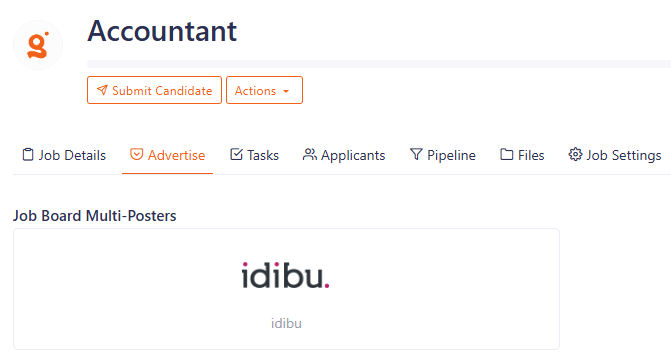
- Open any existing Job and click the Advertise tab at the top.
-
Under Job Board Multi-Posters, select idibu.
-
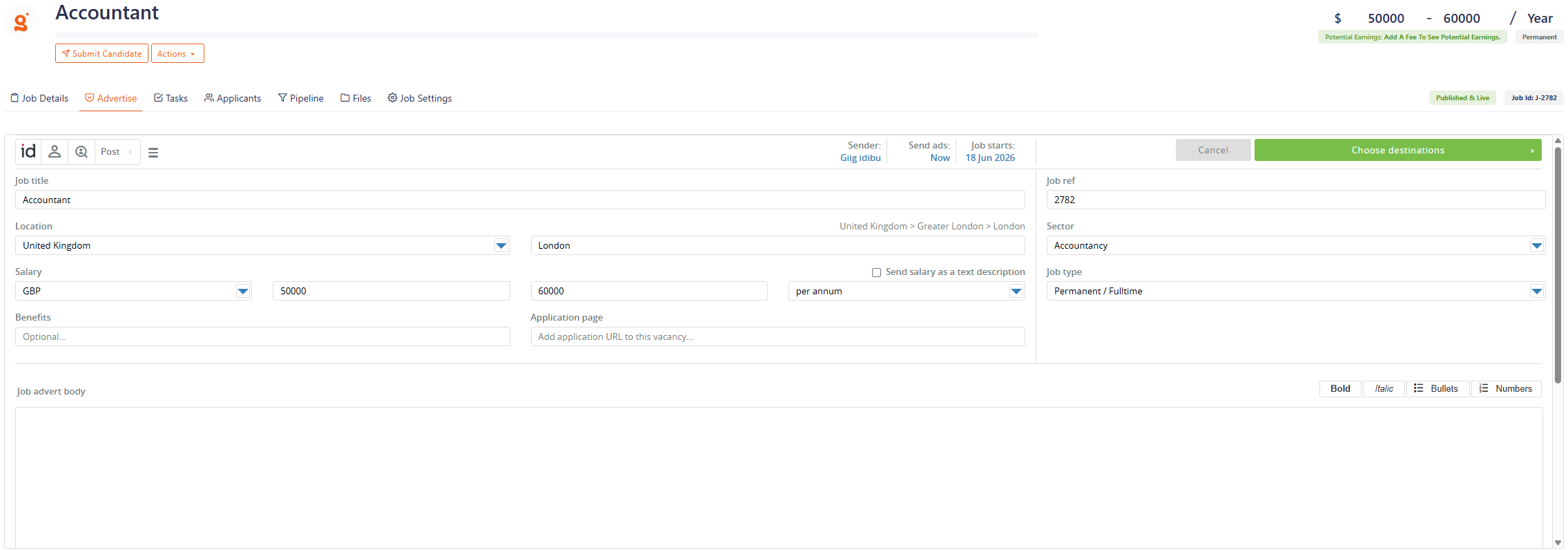
idibu's job posting interface will open - or, for any already-posted ads, the connected idibu Vacancy dashboard. From there, you can follow the standard idibu CRM usage.
Note
Please make sure not to change the Job ref in idibu posting form - it is used to connect your Adverts and Candidates to your Giig account.
Managing idibu candidates
Candidates who apply for your Giig adverts posted via idibu must first be reviewed in idibu using the traffic light system.
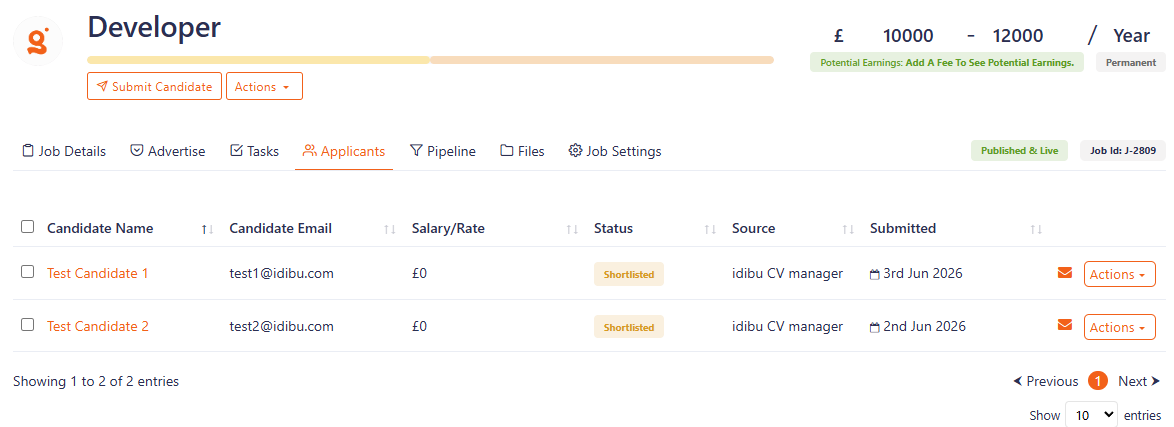
Green-flagged candidates will land under their respective Job's Applicants tab in Giig, with the "Shortlisted" status in that Job's Pipeline.
Yellow-flagged candidates will be added to your Giig's Candidates database, but not assigned to any particular Job.
Candidates pushed to Giig from idibu will only come with basic data:
- first and last name
- email address
- source (name of the job board in idibu)
- CV file
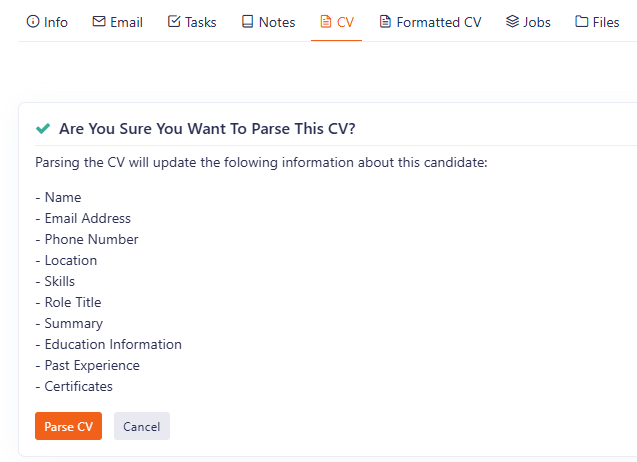
To create a full candidate profile, you can choose to parse the candidate's CV in Giig (this will cost your CV-parse credits).