
Atlas - CRM integration setup
This guide will walk you through connecting your idibu account to Atlas, enabling seamless candidate and vacancy data transfer between the two platforms.
Here is the basic outline of how this integration works:
- The integration uses the idibu iframe, which opens up idibu's dedicated interface as part of the posting process.
- All candidates are forwarded from idibu to Atlas automatically via webhooks.
Prerequisites
- You must have admin access to both your idibu and Atlas accounts.
- You will need your idibu App ID, App Secret, and Access token (provided by your idibu account manager or generated directly on your idibu account).
- You can refer to Atlas' step-by-step guide for the entire setup process as well.
Step 1: Enable the idibu integration
- Log in to Atlas as an administrator.
- Under the Company settings area, navigate to the Apps section.
- Click Authenticate under idibu.
-
A side panel will appear where you will need to enter your App ID, App Secret, and Access token.
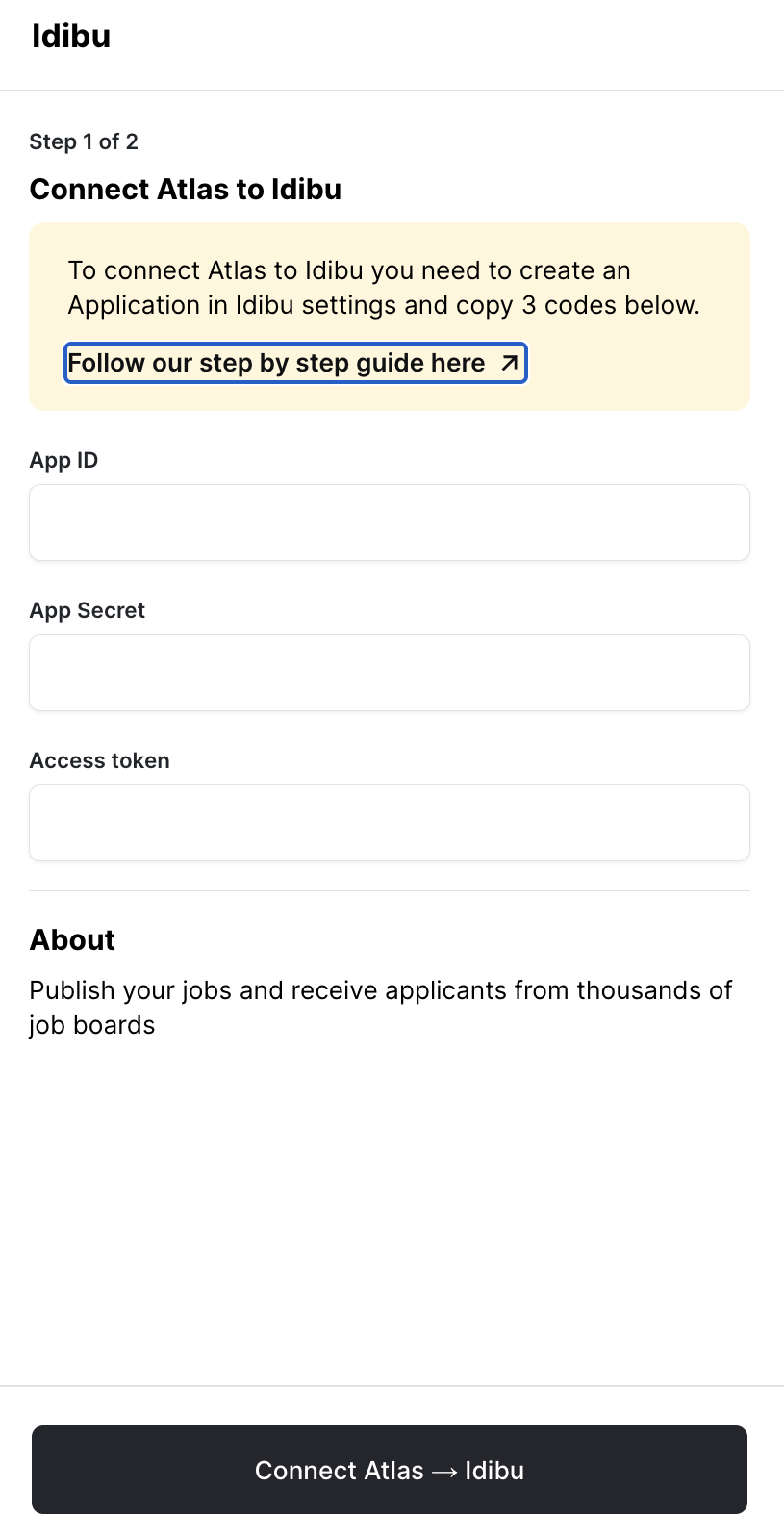
- Click Connect Atlas —> idibu.
-
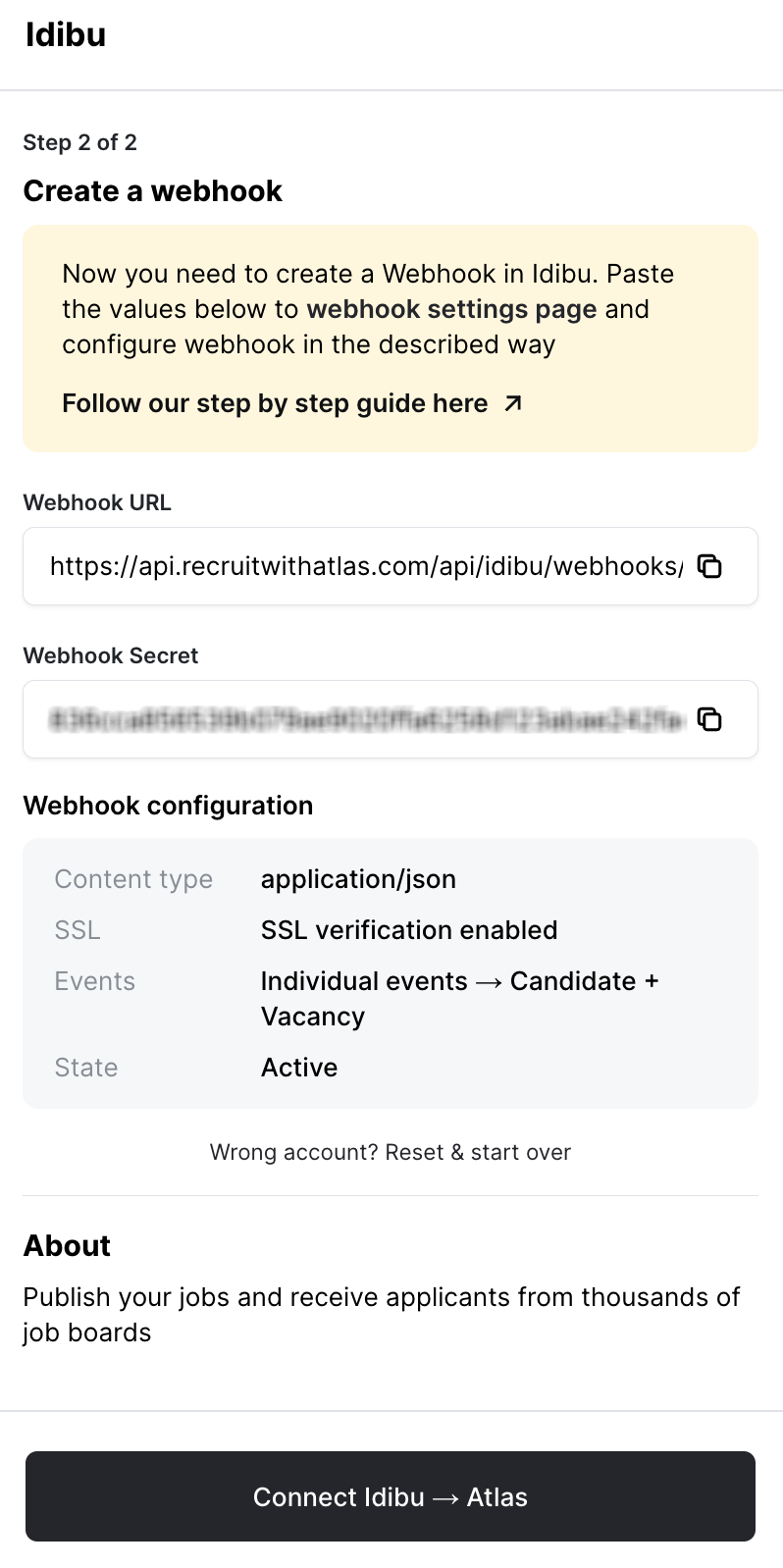
In the second step, the sidebar will display your Atlas account's Webhook URL and Webhook Secret - copy them for the next step and click Connect Atlas —> idibu one more time.
Step 2: Configure the webhook
- Login to idibu as an administrator.
- Access Settings —> System settings —> Webhooks and click the Add Webhook button.
- Configure the webhook by pasting the Payload URL and the Secret that you copied in the previous step.
- Set the Content type to application/json.
- Enable SSL verification.
-
Only enable the Vacancy and Candidate events.
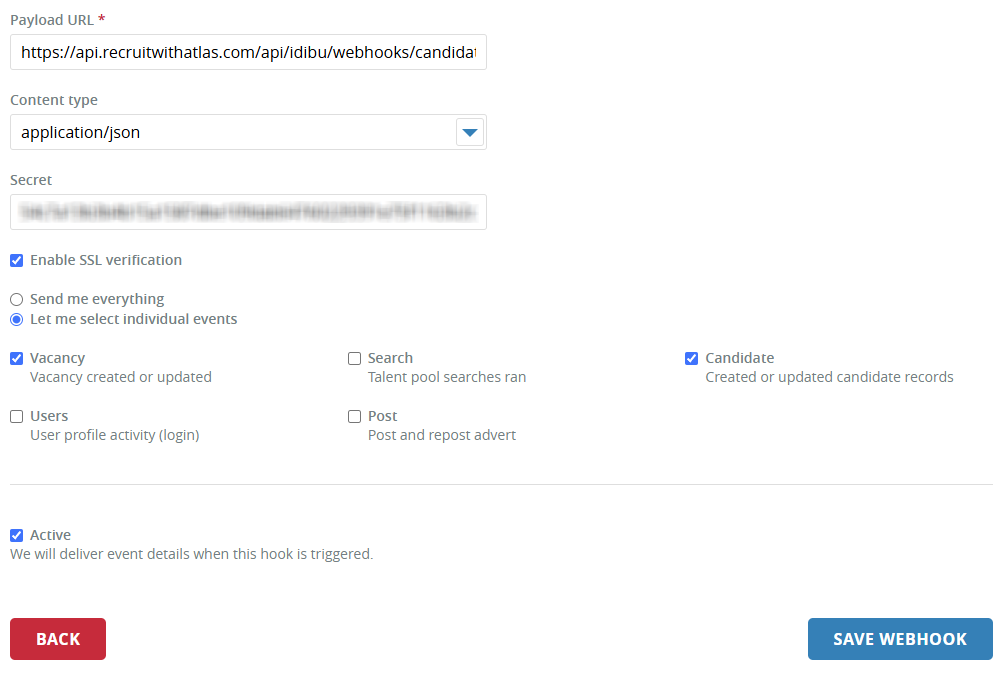
- Click Save Webhook.
You’re all set! Your idibu and Atlas accounts are now connected, streamlining your recruitment workflow.
If you encounter any issues, double-check your idibu App ID, Secret, and Access token, and the Webhook URL and Secret. For further help, contact Atlas and idibu support.
Please consult this article to find out how you can use the idibu-Atlas integration to post your jobs and manage candidates!