
SourceWhale - CRM integration setup
This guide will walk you through connecting your idibu account to SourceWhale, enabling seamless candidate and vacancy data transfer between the two platforms.
Here is the basic outline of how this integration works:
- The integration uses the idibu iframe, which opens up idibu's dedicated interface as part of the posting process.
- By default, candidates apply via SourceWhale's application pages, bypassing idibu entirely.
- Candidates who land in idibu must have a status assigned via the traffic light system to be forwarded to SourceWhale via webhooks.
Prerequisites
- You must have admin access to both your idibu and SourceWhale accounts.
- You will need your idibu App ID and App Secret (provided by your idibu account manager or generated directly on your idibu account).
- You must also obtain your SourceWhale webhook details from your idibu account manager.
Step 1: Enable the idibu integration
- Log in to SourceWhale as an administrator.
-
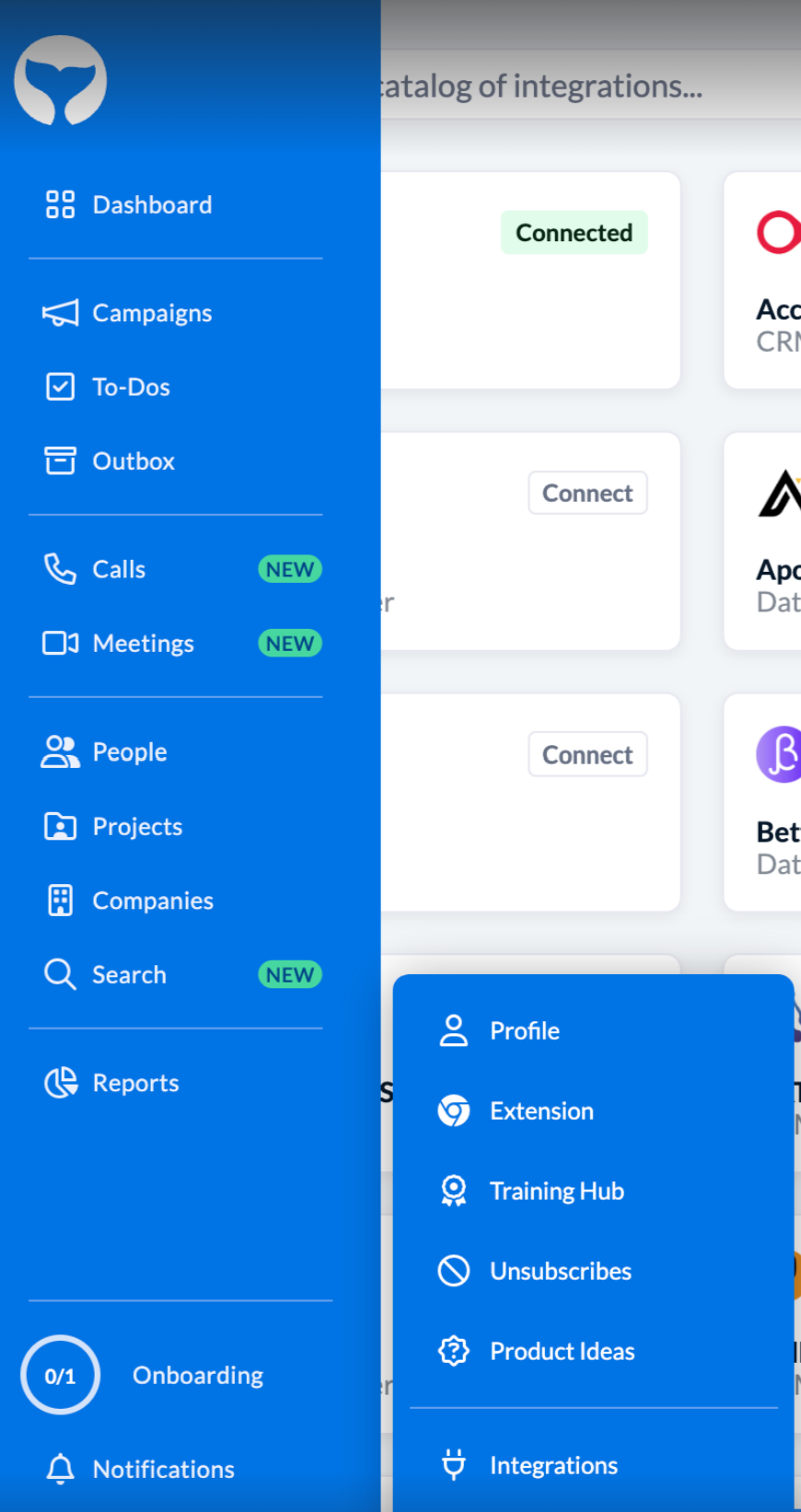
In your side panel, click your profile name and access the Integrations section.
-
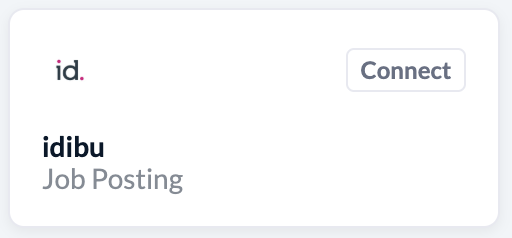
Locate the idibu tile and click Connect.
-
In the panel that pops up, enter your app's ID and Secret.

- Click Activate.
Step 2: Configure the webhook
- Login to idibu as an administrator.
- Access Settings —> System settings —> Webhooks and click the Add Webhook button.
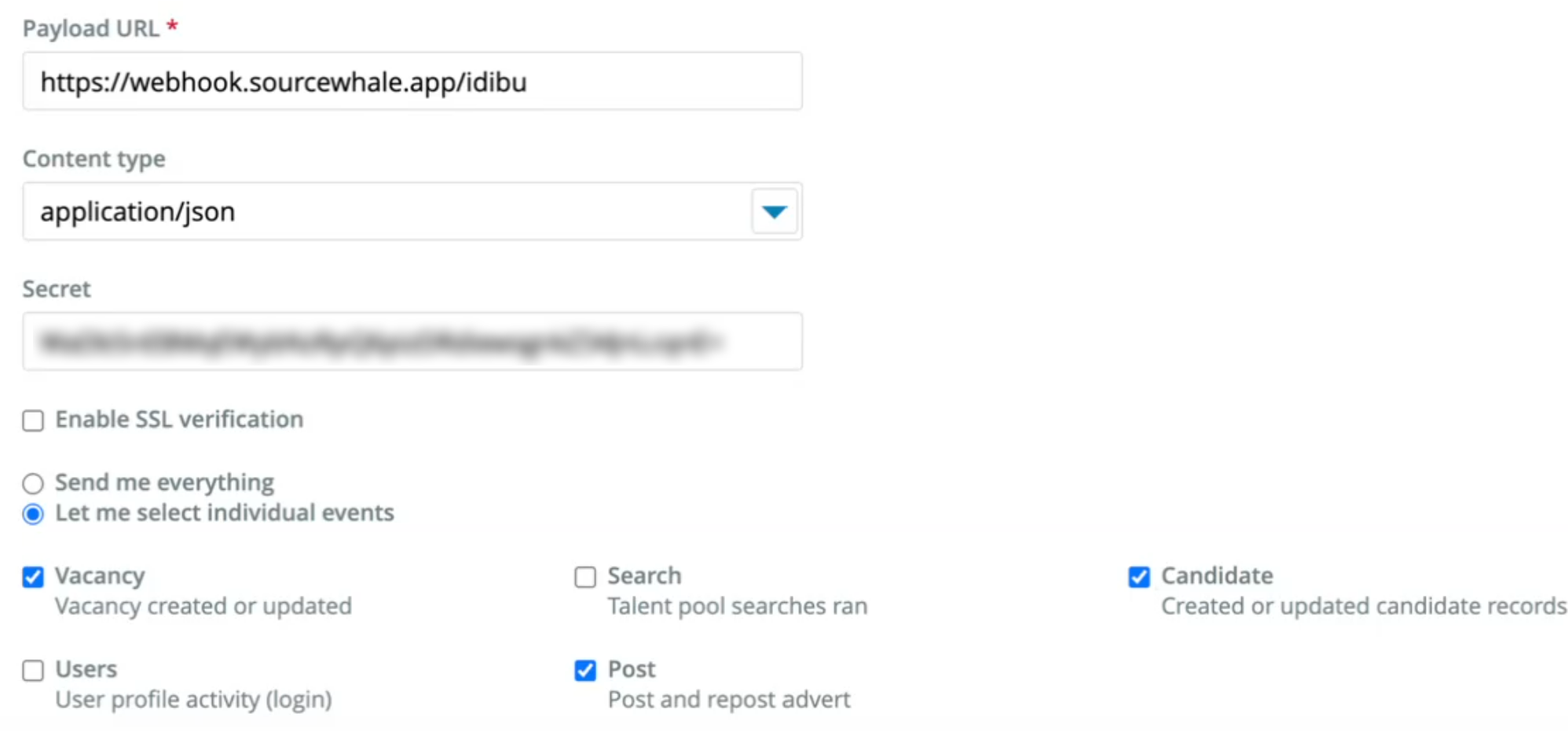
- Configure the webhook's Payload URL as https://webhook.sourcewhale.app/idibu; and enter the Secret provided by your idibu account manager.
- Set the Content type to application/json.
-
Only enable the Vacancy, Candidate, and Post events.
- Click Save Webhook.
You’re all set! Your idibu and SourceWhale accounts are now connected, streamlining your recruitment workflow.
If you encounter any issues, double-check your idibu App ID and Secret, as well as the Webhook URL and Secret. For further help, contact SourceWhale and idibu support.
Please consult this article to find out how you can use the idibu-SourceWhale integration to post your jobs and manage candidates!